
How to Use Tachiyomi in 2026: Complete Manga Reading & Library Guide
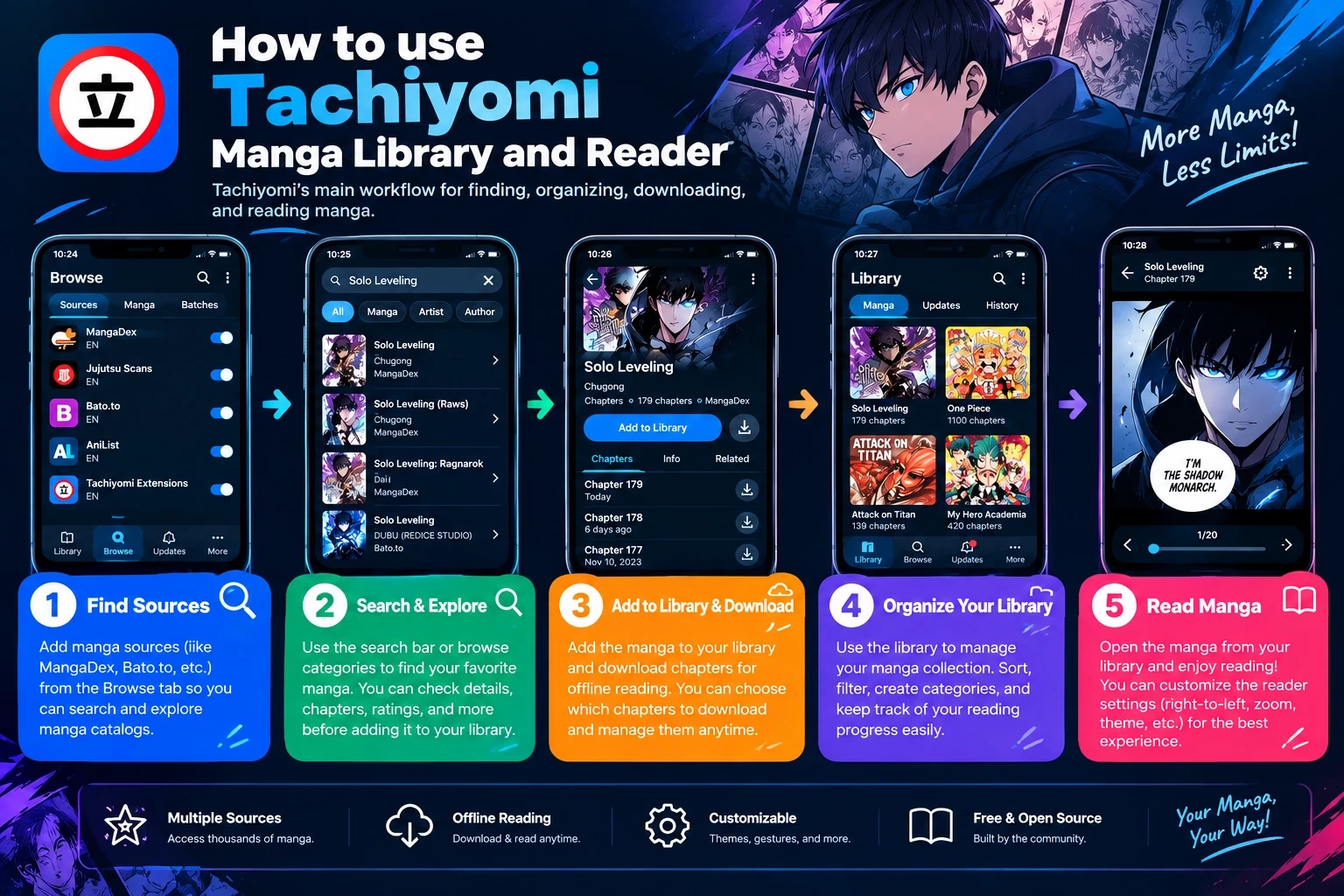
If Tachiyomi is already on your phone, the next question is how to use Tachiyomi day to day: finding a manga, reading it comfortably, keeping your library tidy, and saving chapters for offline time. This guide covers that daily workflow. Installation and first-time setup are already explained elsewhere on this site, so we skip them here.
One note on context: the original Tachiyomi project has been discontinued. Some people still run an existing Tachiyomi installation, and many others now use a fork such as Mihon, which keeps the same basic layout. The steps below apply to most of them, but menu names and options may vary slightly depending on your Tachiyomi version or fork.
By the end, you will know how to use Tachiyomi to find and read manga, organize a large library with categories, download chapters, adjust the reader, update titles, and track your progress.
Before you start: first-time setup is covered in our complete Tachiyomi guide. If you still need sources, read the Tachiyomi extension repository guide and the Tachiyomi extensions guide. Mihon users can follow the Mihon extensions guide and the Mihon extension repo list. To see how current apps differ from the original, compare the main Tachiyomi forks.
Quick Answer: How to Use Tachiyomi
The short version of how to use Tachiyomi: pick a manga source, search for a title, and open its page. Add it to your Library, then open a chapter and read. Download chapters if you want offline access, sort saved manga into categories, refresh the library to check for new chapters, and connect a tracker to sync your progress. The workflow stays the same across versions: source, manga, library, chapters, reader, downloads, updates, tracking. Exact menu names may differ by version or fork.
How to Use Tachiyomi After Setup
Tachiyomi does not host manga itself. It reads chapters from sources provided by extensions, then lets you save titles to your own library. Once you understand how to use Tachiyomi as a loop, everything else gets easier:
- Source: the website or service an extension connects to.
- Manga: the title page with its description, status, and chapter list.
- Library: your saved collection.
- Reader: the screen where you read, with its own settings.
- Downloads, updates, and tracking: optional layers that make reading faster, fresher, and easier to follow.
Status note: The original Tachiyomi project is discontinued. Existing installations may still work, but you may notice differences depending on the version, extensions, sources, or fork you use.
How to Find Manga in Tachiyomi
Find Manga From a Source
Open Browse, choose a source from the Sources list, and look through its Popular or Latest listings. Tap a cover to open the manga page. To look for a specific title, use the search icon inside the source. Many sources also offer filters such as genre or status, but the available options depend on the source.
How to Use Tachiyomi Global Search
Not sure which source has a title? Use global search. It checks your installed sources and shows results grouped by source, so you can compare them quickly. Start with the simplest form of the title. Pinning the sources you use most, where your version supports it, keeps them at the top of the list.
What If a Manga Does Not Appear?
- The source may simply not carry that title.
- The extension or source may be broken or outdated.
- The title may be listed under another name or spelling.
- The source may be temporarily unavailable.
- Search on that site may be incomplete or slow to index new series.
- The manga may have been removed from the source.
Try an alternate title, a shorter query, or a different source before assuming the manga is gone.
How to Read Manga in Tachiyomi
Open a Chapter
On the manga page, scroll to the chapter list and tap a chapter. The reader opens and loads the pages. Newer chapters are usually at the top, but you can reverse the order in the chapter list options.
Continue From Your Last Chapter
Tap the Resume button on a manga page, or open the History tab to jump back to what you read recently. Both remember your last page.
Mark Chapters as Read
Chapters are normally marked as read when you reach the end. To do it manually, long-press a chapter, select others if needed, and choose mark as read or unread. A “mark previous as read” option is handy when you start a series mid-way or switch sources.
How to Use Tachiyomi Reader Controls to Move Between Pages
Tap the left or right side of the screen, or swipe, to turn pages. Tap the center to show the reader menu with a page slider and settings. Which side is “next” depends on your reading direction. Controls and menu names may vary depending on your version or fork.
How to Add Manga to Your Tachiyomi Library
The Library is what turns Tachiyomi from a browser into a reading app. Saved titles stay in one place, show unread counts, get checked for new chapters, and can be organized or downloaded in bulk. To add one, open the manga page and tap the Add to library button, often a heart icon.
It is worth saving anything you plan to follow, even loosely, because updates and categories only apply to library titles. Anyone learning how to use Tachiyomi properly should treat the Library as the center of the app.
How to Organize Your Tachiyomi Library
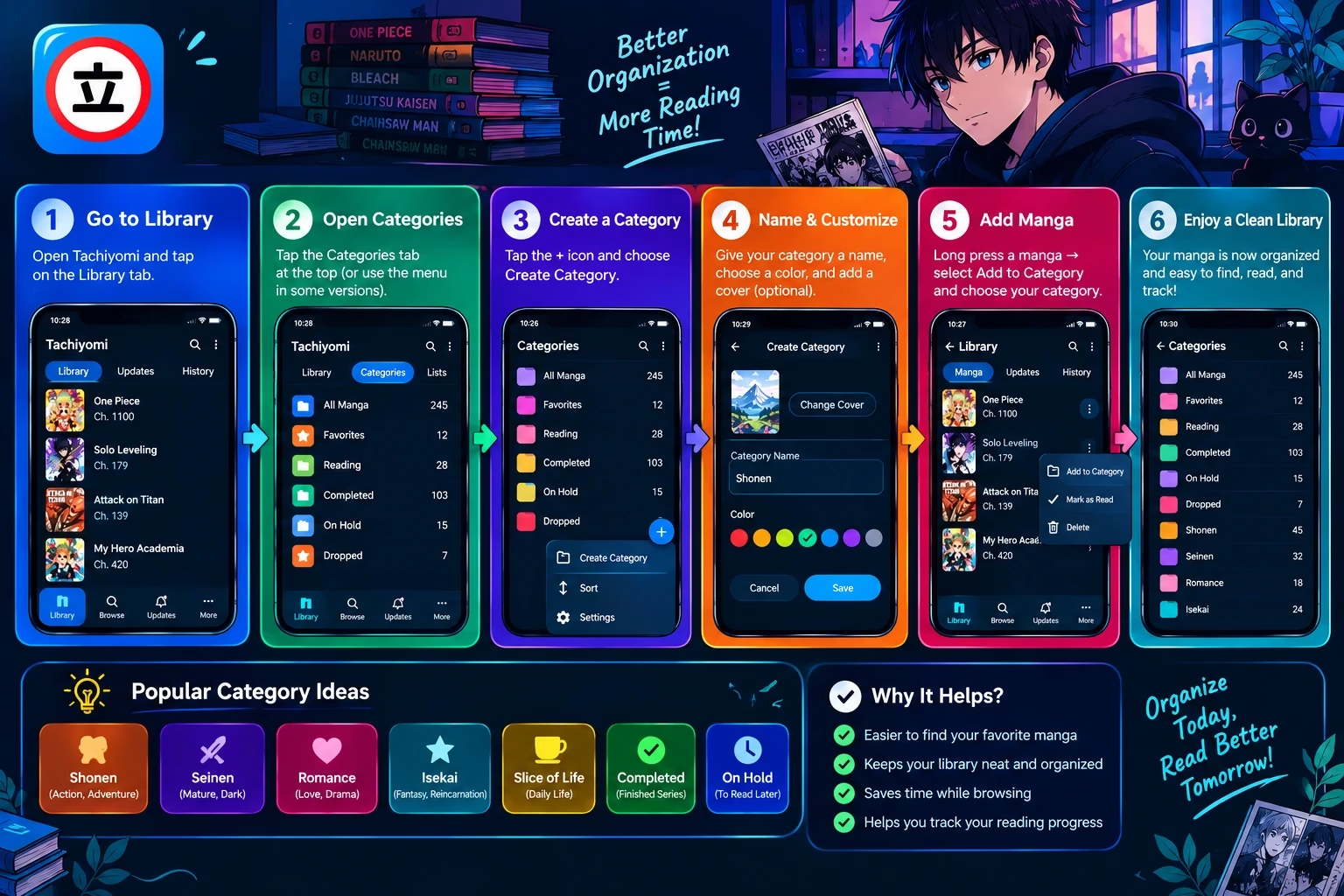
A small library needs no structure, but knowing how to use Tachiyomi categories pays off later. Once you pass a few dozen titles, categories, sorting, and filters keep it usable.
Create Categories
Open Settings, find the Library section, and open Categories. Add a name for each group. In some versions the category editor is also reachable from the Library tab.
Move Manga Between Categories
Long-press a title in the Library and choose the change-category option, or open the manga page and edit its categories there. A title can usually be placed in more than one category.
Sort Your Library
Use the filter and sort sheet in the Library. Common sort options include alphabetical, last read, last updated, unread count, and date added. “Last read” suits active reading, while “unread count” helps you clear a backlog.
Filter Your Library
The same sheet lets you show only downloaded, unread, started, bookmarked, or completed titles, and often tracked ones too. Combine filters, for example unread and downloaded, to see what you can read right now offline.
How to Organize a Large Manga Library
Keep categories few and meaningful. A set like the one below covers most habits:
| Category | Example Use |
|---|---|
| Reading | Series you are actively following and want at the top. |
| Plan to Read | Titles you saved but have not started. |
| Completed | Finished series you may want to reread later. |
| On Hold | Manga you paused or are waiting on new chapters for. |
| Dropped | Titles you stopped reading but do not want to lose. |
| Favorites | Your best-loved manga, kept separate from the rest. |
How to Download Manga for Offline Reading
Downloading is how to use Tachiyomi without a connection: chapters are saved on your device so they open without internet. It also tends to load faster than streaming from a slow source.
Download a Single Chapter
On the manga page, tap the download icon beside a chapter. A progress indicator shows while it saves, then changes once the chapter is stored.
Download Multiple Chapters
Long-press a chapter, select the others, and tap the download icon in the top bar. Many versions also offer shortcuts such as the next chapter, the next several chapters, or all unread chapters.
Download All Available Chapters
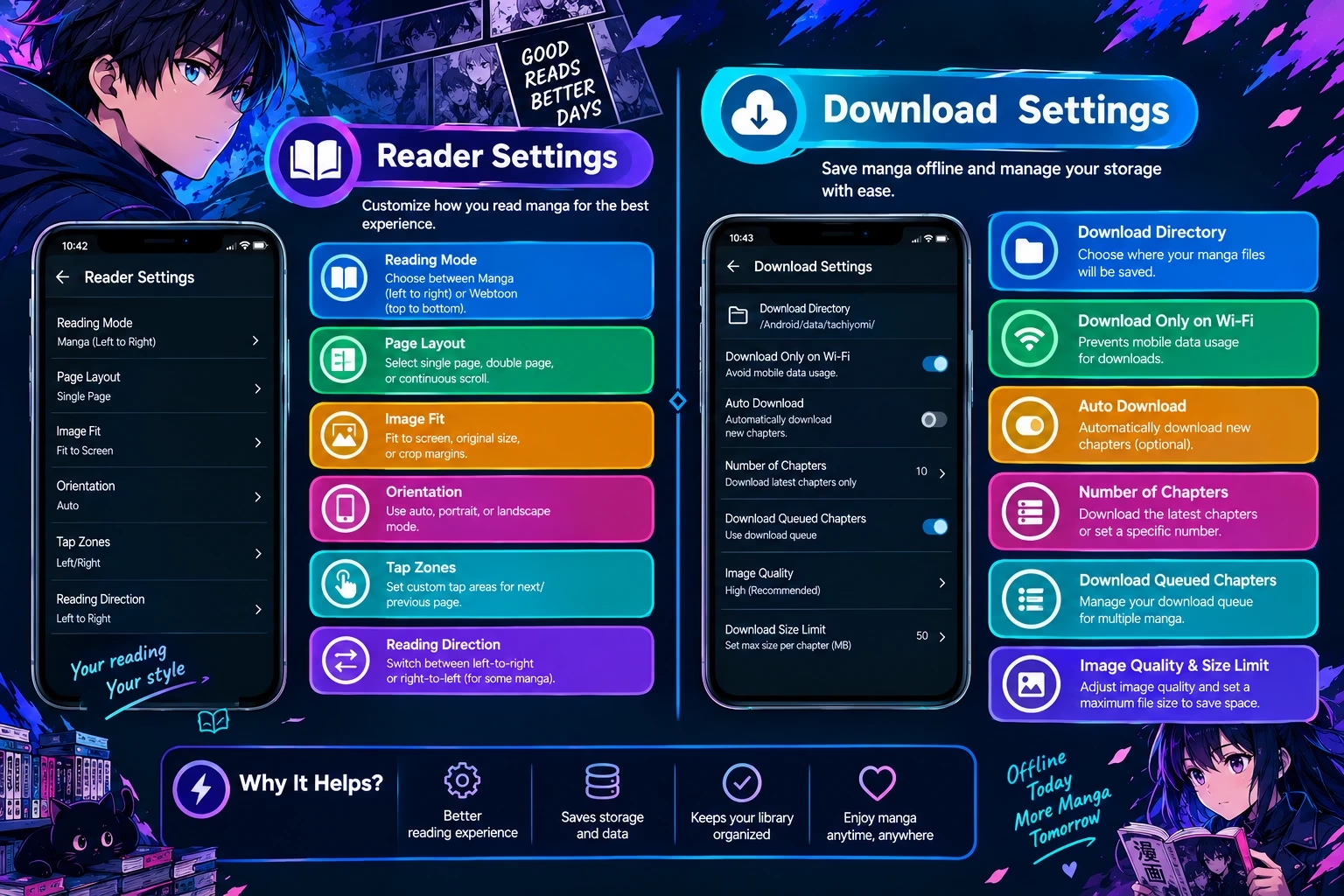
Select every chapter in the list and download them together. This can use a lot of storage on long series, so check your free space first. Your version may also offer automatic downloading of new chapters in the download settings.
Find Downloaded Chapters
Downloaded chapters are marked on the manga page. In the Library, use the downloaded filter to list titles that have saved chapters. A “downloaded only” mode, if available, hides everything that cannot be opened offline.
How to Use Tachiyomi to Read Manga Offline
Open a downloaded chapter exactly as you would an online one. A quick test is to switch on airplane mode and open one. If it loads, your offline setup works.
Manage Downloaded Chapters and Storage
To free space, select downloaded chapters and delete them. Download settings often include an option to remove chapters after you read them, and a setting for the download location. Check both if storage fills quickly.
How to Customize the Tachiyomi Reader
Learning how to use Tachiyomi reader settings takes a minute. Open any chapter, tap the center, and open the reader settings. Defaults can be set under Settings, Reader. These are the options worth knowing:
- Reading direction: right to left suits most manga, left to right suits comics, and vertical suits long strips.
- Page layout and continuous reading: paged modes show one page at a time, while continuous modes scroll.
- Webtoon-style reading: a continuous vertical mode designed for webtoons and manhwa, where pages flow into each other.
- Page scaling: fit screen, fit width, or fit height. Fit width helps on small phones.
- Fullscreen: hides system bars for more room.
- Brightness: a custom reader brightness or color filter can be easier on the eyes at night.
- Navigation controls: tap zones, swipe behavior, and volume-key paging, where supported.
- Appearance: background color and similar display options.
Tip: Many versions let you set reading mode per manga, so a webtoon can scroll vertically while your other manga stay in right-to-left paging.
How to Update Your Manga Library
Knowing how to use Tachiyomi updates keeps your library fresh. To check for new chapters, pull down on the Library to refresh it. New chapters then appear in the Updates tab. To refresh one title, pull down on its manga page. You can also let the app update the library automatically from the library settings, often with limits such as Wi-Fi only or while charging.
If a new chapter does not show up, remember that updates depend entirely on the source. The site may not have published it yet, the extension may be outdated, or the title may have moved to another source. Some versions can skip completed series to speed up refreshes.
How to Track Manga in Tachiyomi
Tracking is the part of how to use Tachiyomi that many people skip. It syncs your reading progress to an external list, so your chapter count follows you across apps and devices. It is optional but useful if you read many series. Commonly supported services include MyAnimeList, AniList, and Kitsu, though the list depends on your version or fork.
- Open Settings and look for the Tracking section, then log in to your chosen service.
- Open a manga page and tap the tracking button.
- Search for the matching entry and select it.
- Read as usual. Progress updates as chapters are marked read.
When tracking does not sync, the usual causes are an expired login, a mismatched entry, no internet connection, or tracking added after you already read the chapters. Updating the chapter number by hand on the tracking screen fixes most cases.
How to Manage Tachiyomi Downloads and Storage
Open the download queue from the app’s More menu to pause, resume, or reorder downloads. When something goes wrong, this table covers the usual causes:
| Problem | Possible Cause | Solution |
|---|---|---|
| Download is stuck | Queue paused, poor connection, or a slow source | Open the download queue, resume it, and check your connection. |
| Download failed | Source or extension error, or a temporary site issue | Retry the chapter later or from another source, and update the extension. |
| Chapter unavailable | The site removed or has not published the chapter | Check the source in the web view. If it is gone there, it cannot be downloaded. |
| Not enough storage | Phone storage is almost full | Delete read chapters and review your download location. |
| Downloads missing | Download folder moved, or storage permission changed | Check the download location in settings and confirm the app can access it. |
How to Use Tachiyomi Every Day: Best Workflow
This is the simplest daily routine for how to use Tachiyomi without it taking over your time. It takes a couple of minutes and keeps everything current:
| Step | What You Do | Why It Matters |
|---|---|---|
| 1. Open Library | Launch the app and go to your Library tab. | Everything you follow is in one place. |
| 2. Check updates | Refresh the library or open the Updates tab. | Shows which series have new chapters. |
| 3. Download if needed | Queue new chapters before travelling or going offline. | Avoids waiting on a slow connection later. |
| 4. Read | Open a chapter or use Resume. | Continues exactly where you stopped. |
| 5. Mark progress | Mark chapters read, or let the reader do it. | Keeps unread counts accurate. |
| 6. Organize | Move new titles into categories. | Keeps a growing library manageable. |
| 7. Sync tracking | Confirm your tracker updated, if you use one. | Keeps external lists in step with your reading. |
Common Problems When Using Tachiyomi
Most problems people hit while learning how to use Tachiyomi come from sources, storage, or connection issues rather than the app itself.
| Problem | Likely Cause | Quick Fix |
|---|---|---|
| Manga not loading | Source down, weak connection, or broken extension | Refresh, test another source, and update the extension. |
| Chapter missing | Not yet released on that source, or removed | Check the website in web view; try the title on another source. |
| Images not loading | Slow network, source blocking, or cache issue | Reload the chapter, switch networks, or clear the app cache. |
| Downloads failing | Storage full or source error | Free space, then retry. See the download table above. |
| Library not updating | Auto-update off, restrictions on, or source change | Refresh manually and review the update settings. |
| Search not finding manga | Different title spelling or a source without it | Try an alternate title, a shorter query, or global search. |
| Extension or source issue | Outdated or discontinued extension | Update or reinstall the extension, or pick a maintained one. |
| Cloudflare or site check | The website is asking for a verification | Open the source in the web view, pass the check, then return. |
For deeper fixes, see our guide to extensions not working. If adding a link returns an error, read the Tachiyomi error 404 fix.
Tachiyomi Extensions and Sources
Extensions are small add-ons that let the app read manga from supported websites. Each extension provides one or more sources, and without them the app has nothing to browse. Adding sources is covered in the guides linked near the top of this page. To compare what is worth installing, read about the best Tachiyomi extensions.
Tachiyomi vs Mihon
Tachiyomi was the original open-source manga reader for Android, and its development has ended. Mihon is a continuation that grew out of the same code and keeps a familiar interface, which is why searches for Tachiyomi often lead to it. You can read about the app on the official Mihon website.
In practice, an existing Tachiyomi installation and a current fork look very similar, but forks are the ones still receiving changes. If you are moving over, our Mihon app guide explains what to expect.
Is Tachiyomi Still Working in 2026?
Before you spend time learning how to use Tachiyomi, it helps to know its status. Short answer: the original project is discontinued, but an existing installation may still run. Whether it works well depends on your setup.
- The original Tachiyomi project is no longer developed.
- Existing installations can still open libraries and read downloaded chapters.
- Extensions and sources can break at any time when websites change.
- Many users have moved to maintained forks.
- Mihon is one important successor in the ecosystem, and its code is public on GitHub.
If your install is giving you trouble, compare other readers in our Tachiyomi alternatives guide before deciding to switch.
Frequently Asked Questions
The original Tachiyomi project is discontinued, but that does not mean every installation stopped working. An existing install can still open your library and read downloaded chapters. What changes over time is source availability, because extensions and websites can break. Many users now run a maintained fork such as Mihon instead.
Sources come from extensions. Open Browse, go to the Extensions tab, and install the extension for the site you want. Once installed, its source appears in the Sources list. If no extensions are listed, your app may need an extension repository added first. Menu names can vary by version or fork.
Often yes, but it depends on your version or fork. Newer builds rely on third-party extension repositories that you add yourself, while older installs may show extensions directly. Availability also depends on whether the extension is still maintained. If the Extensions tab is empty, check that a repository is configured.
Yes. Mihon is the best-known successor and keeps a very similar layout, so the steps in this guide apply to it. Several other forks and manga readers also exist, each with different features and update habits. Choose one based on how actively it is maintained and whether it supports the extensions you need.
Here is how to use Tachiyomi in short: open Browse, choose a source, and search for a manga. Open its page, add it to your library, then tap a chapter to read. From there you can download chapters for offline use, sort titles into categories, refresh the library for new chapters, and connect a tracker. Exact menu names depend on your version or fork.
Open a source from Browse and use Popular, Latest, or the search icon to look for a title. If you are unsure which source has it, use global search to check all installed sources at once. When nothing appears, try a shorter or alternative title, or test a different source.
Open a manga page and tap a chapter to launch the reader. Tap the screen edges or swipe to turn pages, and tap the center to show the reader menu. Use the Resume button on the manga page or the History tab to continue where you stopped. Reading direction depends on your reader settings.
Open the manga’s page from any source and tap the Add to library button, often shown as a heart icon. If you have created categories, the app may ask which one to use. The title then appears in your Library tab, where it can be updated, sorted, and downloaded alongside your other manga.
Create categories in the library settings, such as Reading, Plan to Read, and Completed. Then long-press a manga in the Library, or open its page, and choose a category. You can also sort by last read, last updated, or unread count, and filter the library to show only downloaded or unread titles.
Open a manga page and tap the download icon beside a chapter, or long-press to select several chapters and download them together. Many versions also offer options for the next few chapters or all unread ones. Downloaded chapters can be read without internet, and the Downloaded filter makes them easy to find.
Open any chapter and tap the center of the screen to show the reader menu, then open the reader settings. There you can change reading direction, page scaling, fullscreen, and brightness. Defaults live in the main Settings under Reader. Option names can vary depending on your Tachiyomi version or fork.
The most common causes are an unavailable source, a broken or outdated extension, a poor connection, or a website protection check. Try opening the source in the in-app web view, refresh, update the extension, or test another source. If one title fails everywhere, it may have been removed from the site.
Final Takeaway
How to use Tachiyomi comes down to a repeatable loop: find a manga, add it to your Library, organize it into a category, update to see new chapters, download what you want offline, read, and track your progress. Once the loop is familiar, the rest is small adjustments to the reader and download settings. The original project is discontinued, so the exact menus you see depend on your installation or fork, but the workflow is the same.