
Failed to Bypass Cloudflare Tachiyomi – Easy Fix Guide 2026
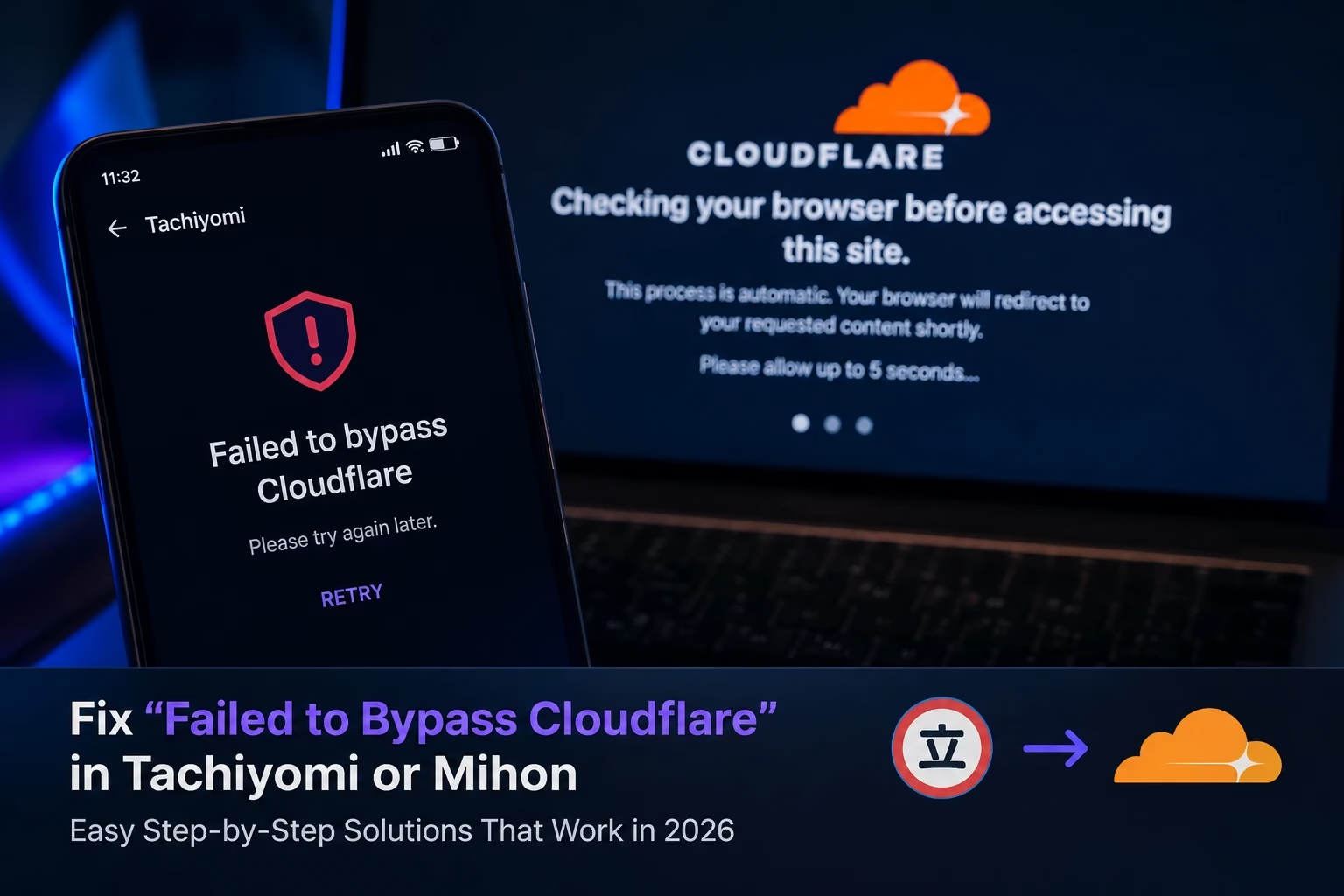
Quick answer: Failed to Bypass Cloudflare Tachiyomi usually means the source’s Cloudflare protection, your WebView, or a network/DNS issue is blocking the request. This does not mean Tachiyomi itself is broken. Work through the fixes below in order, and check whether it’s one source or several before you start changing settings.
Quick Troubleshooting Table for Failed to Bypass Cloudflare Tachiyomi
Before touching any settings, match what you’re seeing to the row below. It tells you exactly where to start instead of trying every fix at once, which is usually how people waste an hour on an error that takes two minutes to solve.
| What You’re Seeing | Try First |
|---|---|
| Cloudflare error on one source only | Try another source for the same title |
| Cloudflare error on many sources | Check WebView and network settings |
| Page loads fine in Chrome but not Tachiyomi | Update WebView, then check User-Agent |
| Still failing after settings changes | Clear app/source cache and retry |
| Source has been blocked for a while | Wait it out or use another source |
| Error appears on public Wi-Fi or mobile data only | Switch network or try a different DNS |
What Does Failed to Bypass Cloudflare Tachiyomi Mean?
Cloudflare sits in front of a large share of manga websites as a security layer, checking incoming traffic before letting it through to the actual site. When Tachiyomi tries to reach a source, Cloudflare sometimes challenges that request with a browser-verification check, similar to the “checking your browser before accessing this site” screen you may have seen while browsing the web normally.
The Failed to Bypass Cloudflare Tachiyomi error simply means that automatic verification step failed. It does not necessarily mean Tachiyomi itself is broken, that your device has a virus, or that the source is gone for good. It simply means one specific request couldn’t get past a security gate at that specific moment.
This distinction matters more than it sounds. A lot of readers assume the app has stopped working entirely the first time they see this message, then spend time reinstalling Tachiyomi or wiping their whole library when the actual fix takes under five minutes. Understanding what the error is actually reporting is the first step toward fixing it efficiently.
How to Confirm It’s Actually a Cloudflare Error
Not every loading failure in Tachiyomi is caused by Cloudflare, so it helps to rule out the obvious alternatives first. A genuine Failed to Bypass Cloudflare Tachiyomi error usually shows one of these patterns:
- The error message explicitly mentions Cloudflare, a challenge, or verification rather than a generic network timeout.
- The same manga source opens normally in your phone’s browser, but fails only inside Tachiyomi.
- Other sources in your library continue to work fine while just this one fails.
- The failure is consistent rather than random. It happens every time you open that source, not just occasionally.
If instead you’re seeing a plain HTTP 404, a blank white page with no error text, or an install-related crash, you’re likely dealing with a different problem entirely. Our Tachiyomi Error 404 guide and Extensions Not Working guide cover those cases separately. iPhone and iPad readers running into similar loading failures should check our dedicated Tachiyomi for iOS guide instead, since the underlying causes and fixes differ from Android.
Why Does Failed to Bypass Cloudflare Tachiyomi Happen?
A handful of causes lead to the same error message, which is exactly why a single fix rarely works for everyone. Understanding each one helps you pick the right starting point instead of guessing:
- Bot/automated-request detection: Cloudflare flags traffic patterns that look automated rather than human, which is common for any app that fetches manga pages programmatically.
- WebView/browser compatibility: an outdated system WebView can fail challenges that a modern browser passes easily, since Cloudflare’s checks rely on current browser behaviour.
- User-Agent mismatch: in some cases, a generic or unusual User-Agent string makes a request look suspicious to the source, even if nothing else is wrong.
- Network or DNS issues: your connection or ISP can interfere with how the challenge response reaches Cloudflare, especially on shared or throttled networks.
- Source-side Cloudflare rules: some sites simply run stricter, more frequent challenges than others, independent of anything on your device.
Note: A generic User-Agent is only one possible cause among several, not a guaranteed one. Don’t assume changing it alone will fix every case. Use the diagnostic table above and the source-specific check below first.
Fix 1: Update WebView to Stop Failed to Bypass Cloudflare Tachiyomi
Tachiyomi and its forks rely on Android’s system WebView component to render pages and solve some Cloudflare checks. An outdated WebView is one of the most common reasons a challenge fails silently, and it’s also the quickest thing to check first.
- Open the Google Play Store app on your device.
- Search for Android System WebView and check if an update is available.
- Tap Update if one is listed, then let it finish installing.
- Fully close Tachiyomi from your recent apps list, not just minimize it.
- Reopen Tachiyomi and try loading the source again.
Note: Exact menu names can differ slightly between Tachiyomi, Mihon and other forks depending on your Android version. Check your own settings screen against the labels here before assuming a step doesn’t apply, since wording can shift between releases. If a recent app update seems to be the trigger, some readers temporarily switch to an older Tachiyomi version while a permanent fix rolls out.
Fix 2: Change Your DNS
Switching to a public DNS provider such as Cloudflare’s own 1.1.1.1 or Google’s 8.8.8.8 can resolve cases where your network or ISP is interfering with how challenge responses travel back and forth, which sometimes triggers the same error even when your WebView is fully up to date.
- Open your device’s Wi-Fi or mobile data settings.
- Find the Private DNS or DNS option under advanced network settings.
- Enter
1.1.1.1or8.8.8.8as the DNS provider hostname. - Save the change and reconnect to the network.
- Reopen Tachiyomi and try the affected source again.
A DNS change can help when the problem is related to network resolution, but it cannot remove every Cloudflare block. If the source’s protection is specifically flagging your request as a bot, a new DNS alone won’t be enough. Move on to the next fix.
Fix 3: Try a Browser-Like User-Agent
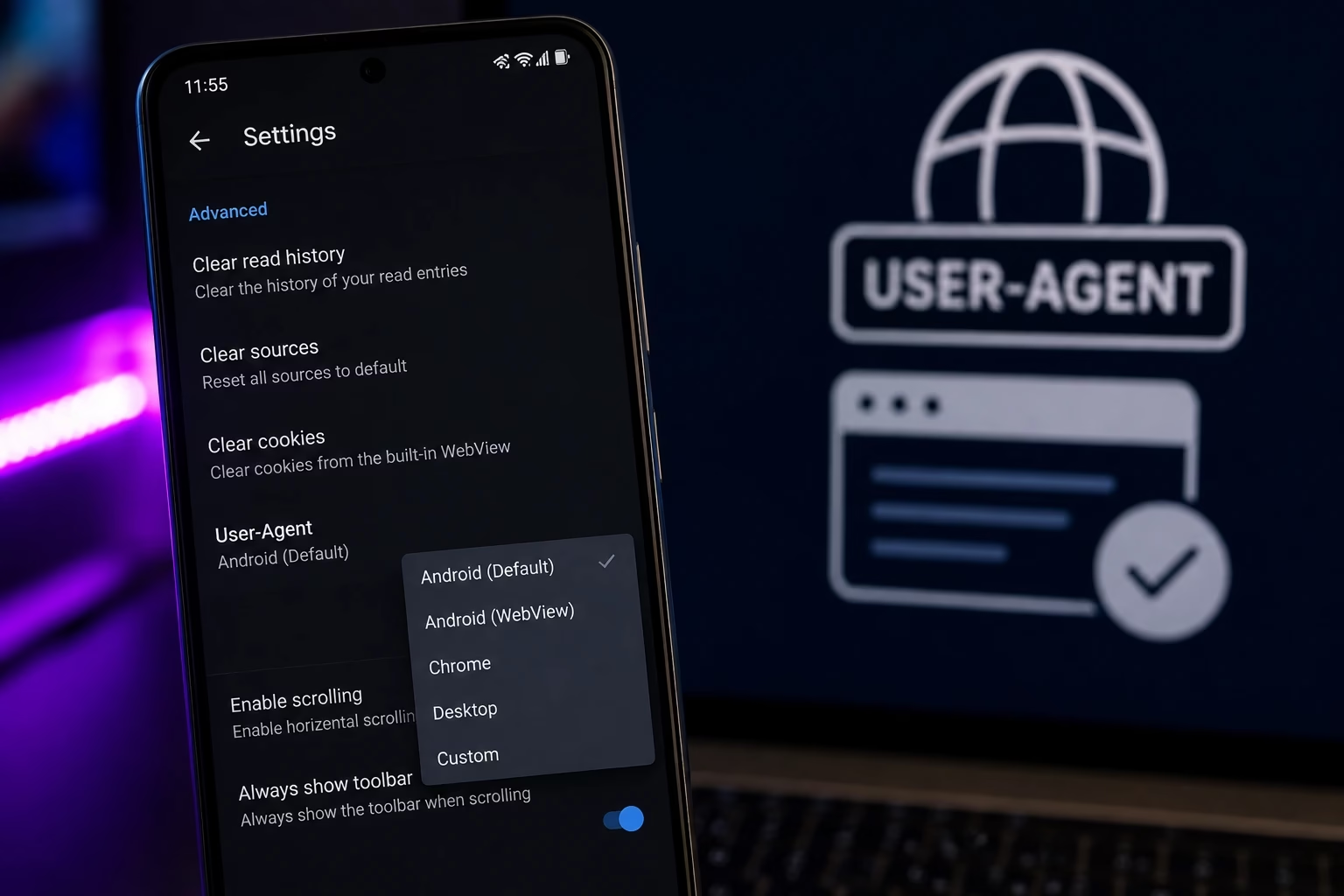
The User-Agent tells a server what kind of client is making the request. Some sources behave differently depending on how that client identifies itself, so switching to a common, browser-like User-Agent may help with certain source-specific issues that trigger the Failed to Bypass Cloudflare Tachiyomi message.
This is a genuine option worth trying, but it’s important to be realistic about what it does: a User-Agent change can make a request look more like ordinary browser traffic, but it does not disable or “bypass” Cloudflare’s protection as a whole. Treat it as one more variable to test, not a guaranteed fix.
- Open Tachiyomi’s Settings, then find Advanced or Browser options.
- Look for a User-Agent or Custom WebView field, if your build includes one.
- Replace it with a current Chrome or Firefox mobile User-Agent string.
- Restart Tachiyomi and retry the source.
- If nothing changes, revert to the default and move to the next fix.
Fix 4: Clear Cache and Try Another Source
The step most guides skip: if you’ve already tried WebView updates, DNS changes and a new User-Agent, the real problem may simply be that one source’s Cloudflare protection is unusually strict right now, not your settings.
Don’t keep tweaking settings when the actual issue is the source itself. Instead, isolate the variable methodically:
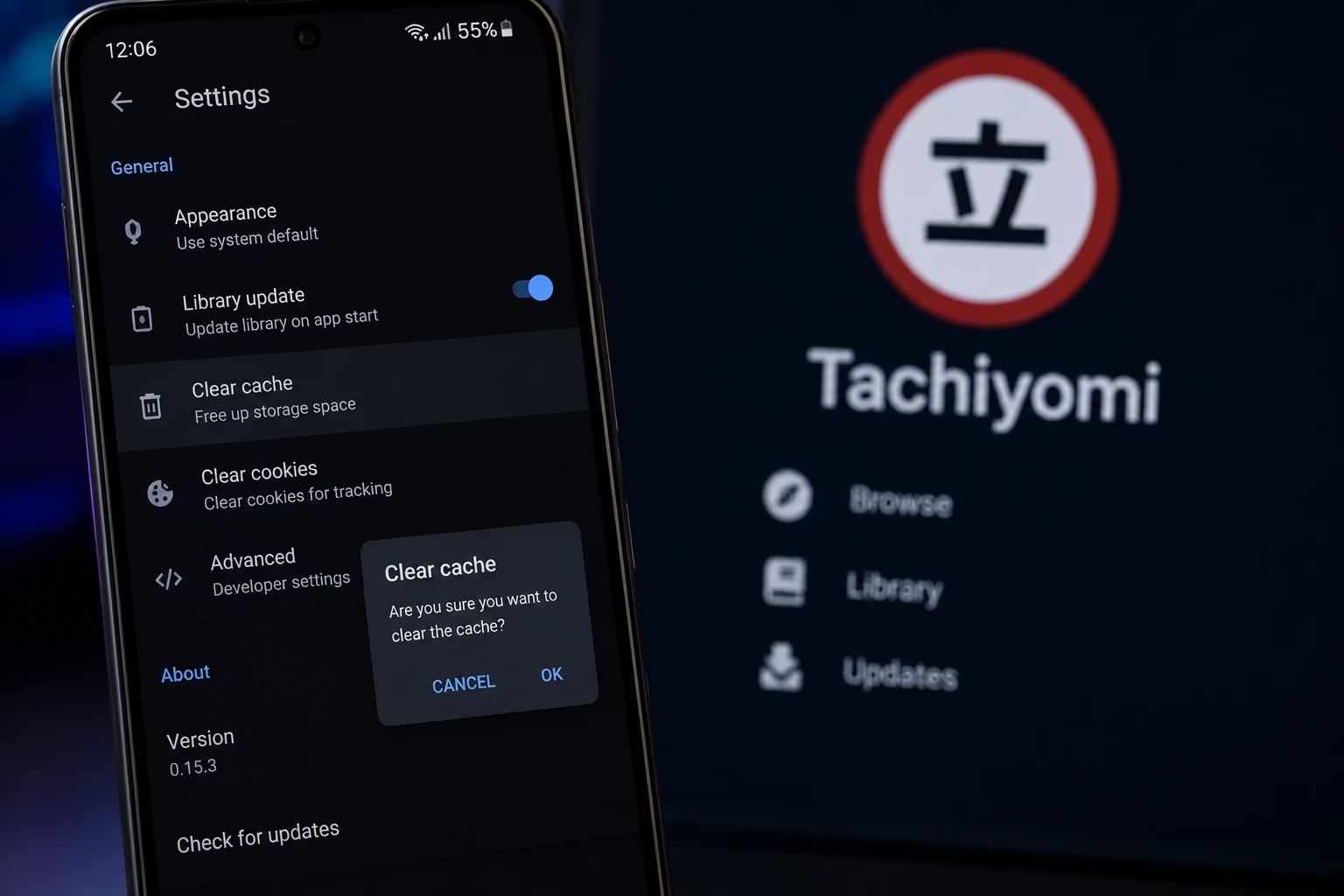
- Clear the relevant app or source cache from Tachiyomi’s storage settings.
- Fully restart the app.
- Retry the same source once.
- Test the same manga on a different available source.
- Compare the result. If the other source loads fine, the first one is the actual problem, not your device.
Fix 5: Try a Different Network or VPN
If Failed to Bypass Cloudflare Tachiyomi only happens on one specific network, such as office Wi-Fi, a public hotspot, or a particular carrier’s mobile data, the network itself may be sharing an IP address or range that Cloudflare has already flagged as suspicious because of other traffic on that same network.
Switching to mobile data if you were on Wi-Fi (or the reverse), or connecting through a reputable VPN, can sometimes resolve this instantly because it changes the IP address your request appears to come from. This isn’t a fix for every case, but it’s a fast way to test whether your specific network is part of the problem. If a source keeps failing no matter what you try, our Tachiyomi alternatives guide lists other apps worth trying in the meantime.
Does Failed to Bypass Cloudflare Tachiyomi Happen on Mihon Too?
Yes. Mihon and other active forks such as TachiyomiSY share the same underlying extension system and the same WebView-based approach to loading sources, so they run into the exact same Cloudflare challenges on the exact same websites. If a source is being aggressively protected by Cloudflare, switching apps alone won’t get around it. The fixes in this guide apply equally whether you’re using the original Tachiyomi APK or a fork like Mihon, and the same steps carry over to other Tachiyomi forks as well.
The one meaningful difference is update frequency. Because Mihon receives more regular updates than the discontinued original Tachiyomi, it’s slightly more likely to already include recent WebView or client-handling improvements, which can occasionally make certain sources behave a little better out of the box. If you’ve recently switched over, our Mihon extensions guide covers any setup differences worth knowing.
Is It Source-Specific or App-Wide?
Before trying every fix at once, this is the question that tells you where a Failed to Bypass Cloudflare Tachiyomi error is actually coming from.
| What You Notice | More Likely Cause |
|---|---|
| Only one source fails | Source-specific: try another source |
| Several sources fail at once | Network or app-side: check WebView/DNS |
| Site loads in a browser but not Tachiyomi | WebView/client issue |
| Source works again later with no changes | Temporary server-side protection |
| Extensions also fail to load or update | Broader extension/network issue |
Running through this table first, before changing any settings, is what separates a quick fix from an hour of guessing.
How to Prevent Failed to Bypass Cloudflare Tachiyomi in the Future
You can’t stop a source from tightening its Cloudflare protection, but a few habits reduce how often you run into this error and make it faster to resolve when you do:
- Keep System WebView updated: enable automatic updates for it in the Play Store so you’re not relying on a stale version.
- Keep your extensions current: extension maintainers occasionally push source-specific fixes for exactly this kind of challenge. Browse the full list of Tachiyomi extensions or see our Extension Repo Setup guide for how to check for updates.
- Follow more than one source per title where possible: that way a single Cloudflare block on one site doesn’t stop you from reading. Our list of the best Tachiyomi extensions is a good place to find reliable alternates.
- Avoid rapid, repeated retries: hammering a blocked source with retries can reinforce a bot-detection flag rather than clear it.
- Note which sources are Cloudflare-heavy: some sites challenge far more often than others, so knowing this in advance saves troubleshooting time later.
Frequently Asked Questions About Failed to Bypass Cloudflare Tachiyomi
Not exactly. It usually means the manga source’s website is protected by Cloudflare and is challenging the request as a bot, rather than Tachiyomi itself being broken. The app is only reporting that the challenge could not be solved automatically.
Chrome runs a full, up-to-date browser engine with cookies, JavaScript and a common User-Agent that Cloudflare recognizes. Tachiyomi relies on a lighter WebView component, so an outdated WebView or an unusual client fingerprint can trigger a challenge that a regular browser passes automatically.
Sometimes. A DNS change can help when the underlying problem is network resolution or your ISP interfering with the connection, but it cannot remove a Cloudflare challenge that is specifically targeting the request itself.
It’s worth trying. A browser-like User-Agent may help with certain source-specific issues since some sites behave differently depending on how the client identifies itself, but it is not a guaranteed bypass for every Cloudflare protection.
When a single source fails while everything else works, the issue is almost always source-specific, meaning that particular website has stepped up its Cloudflare protection or is rate-limiting requests, rather than a problem with your app or network.
Yes. Mihon and other Tachiyomi forks share the same extension and WebView-based system, so they are affected by the same Cloudflare challenges on the same sources. The fixes in this guide apply to Mihon, TachiyomiSY and other forks as well.
If WebView updates, DNS changes and a browser-like User-Agent all fail, the source’s Cloudflare protection is likely too strict for the moment. Wait a few hours and retry, or switch to another available source for the same title in the meantime.
Final Thoughts on Fixing Failed to Bypass Cloudflare Tachiyomi
For more troubleshooting guides like this one, browse the Tachiyomi Tips home page.
Summary: Fixing Failed to Bypass Cloudflare Tachiyomi
If Cloudflare affects only one source, the problem is likely source-specific. Using another available source is often the simplest solution. If multiple sources are affected, check WebView, network and app settings first before assuming any single source is at fault. Either way, diagnosing which case you’re in saves far more time than trying every fix at once, and the same steps apply whether you’re running the original Tachiyomi APK or a fork like Mihon.