
How to Fix Tachiyomi Error 404 in 2026 — Complete Step-by-Step Guide
Opened Tachiyomi to read your manga and hit a blank screen with Error 404? You are not alone. This is one of the most reported Tachiyomi problems in 2026, affecting thousands of users across Android devices worldwide. The good news: most cases are fixable in under five minutes.
This guide explains exactly what Tachiyomi Error 404 means, why it happens specifically in 2026, and every working fix ranked from easiest to most thorough. If Tachiyomi is not your only concern, we also cover related HTTP 500 and HTTP 502 errors, since all three often share the same root cause.
What Is Tachiyomi Error 404?
HTTP 404 is a standard web error meaning “Not Found”. The server received the request but could not find what was asked for. In Tachiyomi’s case, this usually means one of three things:
The manga website updated its URL structure. Tachiyomi’s extension is still pointing to an old path that no longer exists.
Tachiyomi development stopped in 2024. Extensions no longer receive automatic updates, so they gradually break as manga sites update their systems.
Old extension repository links no longer serve valid data. If your repo URL has not been updated since 2024, every extension attempt returns a 404 or blank result.
Why Is Tachiyomi Error 404 So Common in 2026?
The honest answer: Tachiyomi was officially discontinued in January 2024. The original development team shut down the project entirely following legal pressure. Since then, no official updates, no security patches, and no extension fixes have been released for the original app.
In 2026, most manga sources have updated their websites at least once, changing URL patterns, adding new authentication layers, or migrating to different CDN providers. Every one of these changes can break a frozen Tachiyomi extension, returning 404, 500, or 502 errors without warning.
The community response has been strong. Maintained forks like Mihon, TachiyomiSY, TachiyomiJ2K, and Komikku receive regular updates and keep extensions compatible. But the original Tachiyomi APK does not.
All Working Fixes for Tachiyomi Error 404 (2026)
Work through these fixes in order. Most users resolve the error at Fix 1 or Fix 2 without going further.
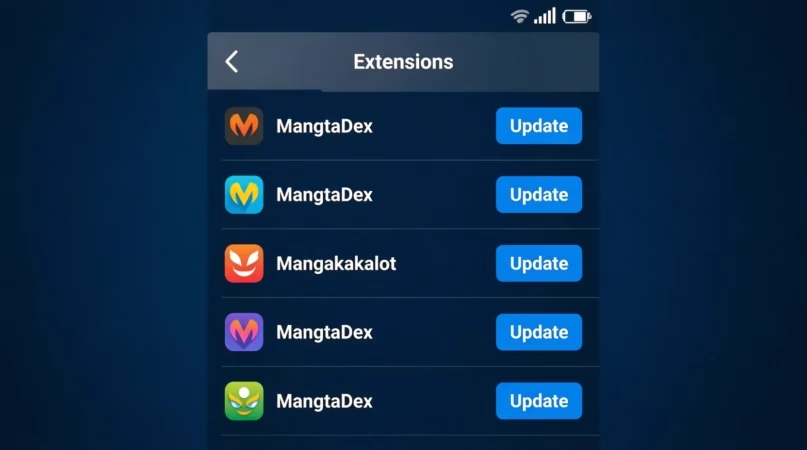
The fastest fix. A single broken extension causes 404 for that source only. Updating it fetches a fresh parser that matches the current website structure.
- Open Tachiyomi and tap Browse in the bottom menu.
- Tap Extensions at the top. Look for any extensions showing an Update button. These are outdated.
- Tap Update All if available, or update each extension individually by tapping the update button next to it.
- After updating, go back to the source that was returning 404 and try loading again.
- If no update is available, uninstall the extension and reinstall it fresh from the Extensions tab.
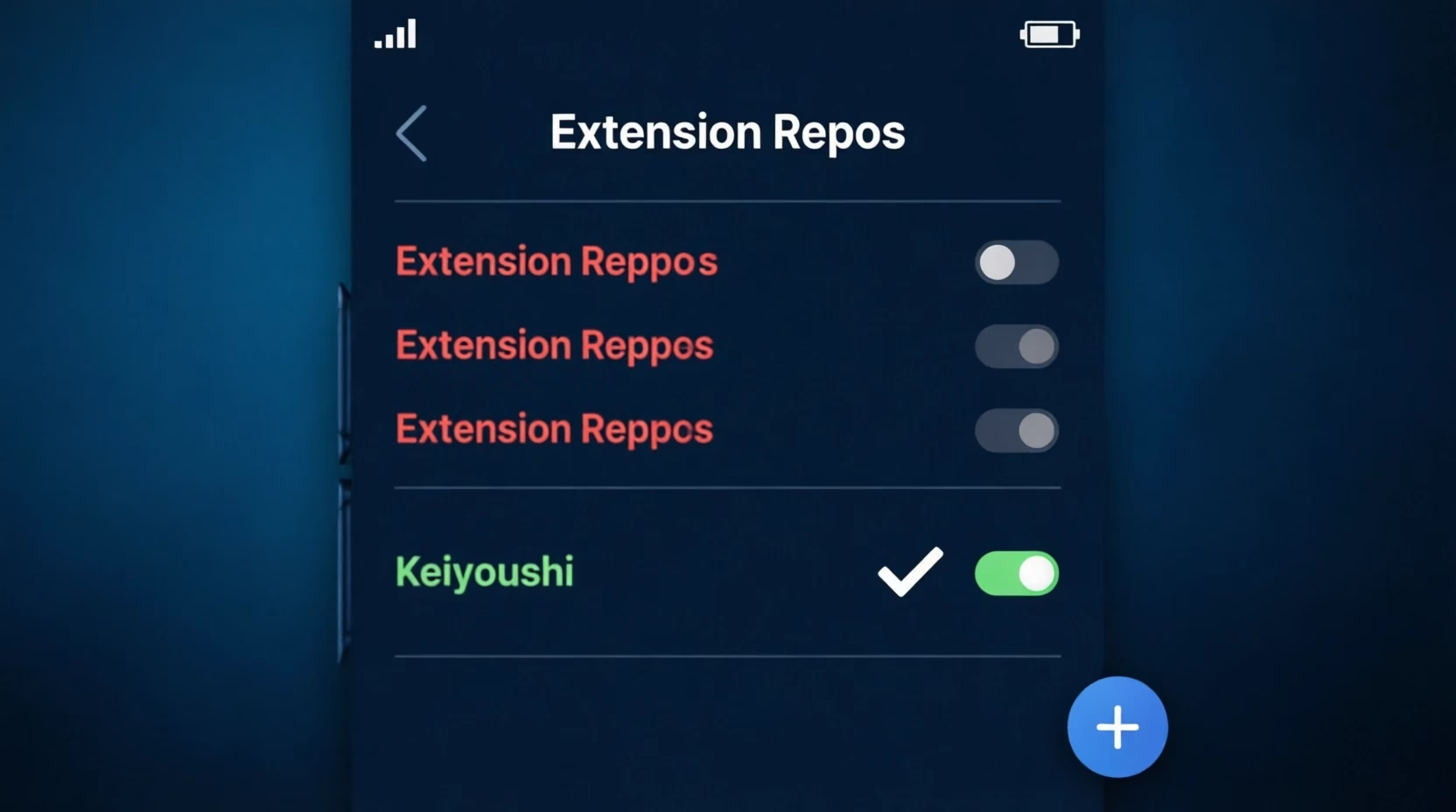
If extensions show no updates available but still return 404, your repository URL is outdated. The Keiyoushi repo is the community-maintained replacement that still works in 2026.
- Open Tachiyomi and go to Settings → Browse → Extension Repos.
- Delete any old repo URLs that are no longer working (usually the old tachiyomi.org repo).
- Tap the + button and paste this working repo URL:
https://raw.githubusercontent.com/keiyoushi/extensions/repo/index.min.json - Save and go back to Browse → Extensions. Your full extension list will now reload correctly.
- Update all extensions that now show an available update.
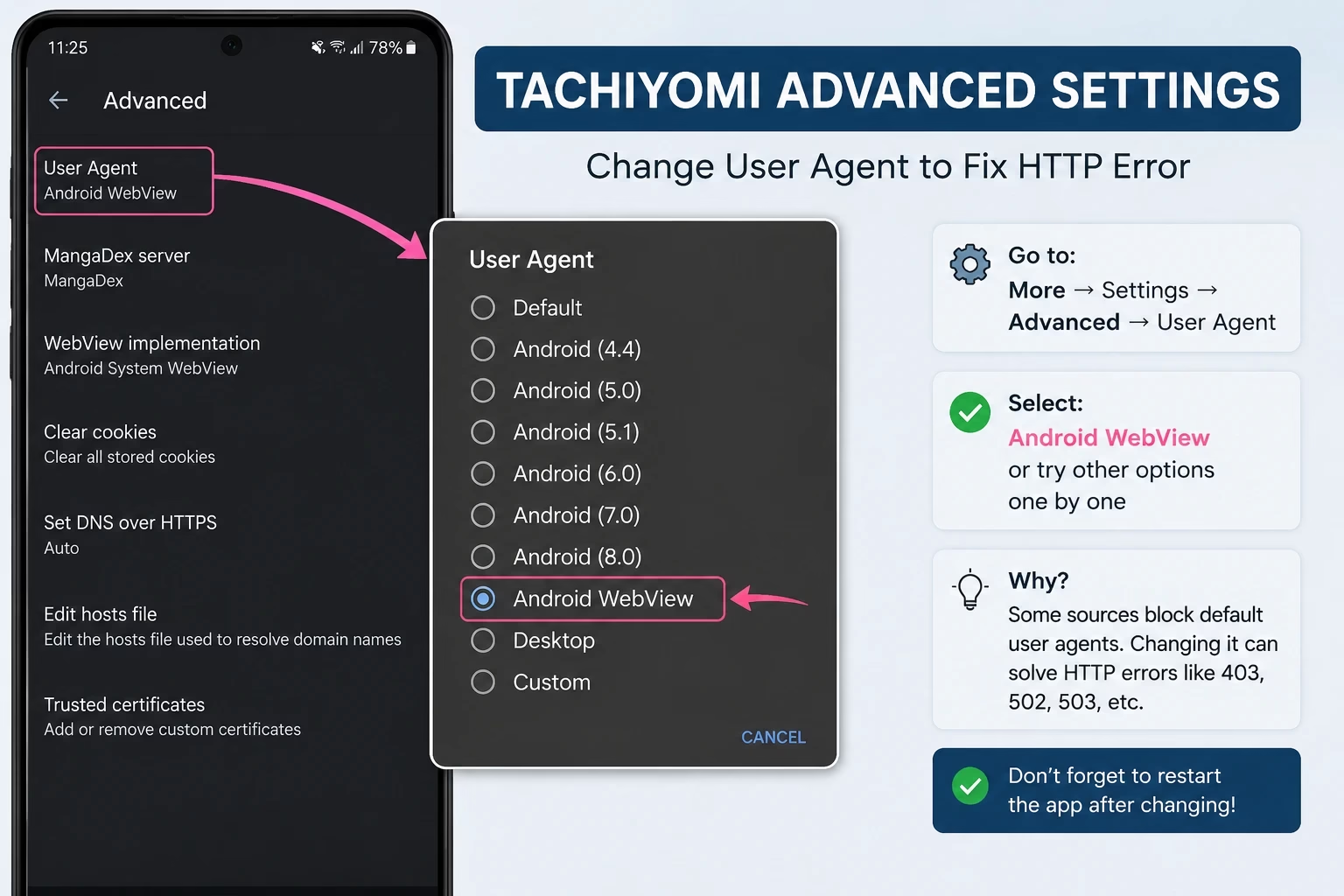
Some manga sources detect Tachiyomi’s default user-agent and block requests with 404 or 403 responses. Changing to a browser user-agent bypasses this detection.
- Open Chrome on your phone and go to
chrome://versionin the address bar. - Copy the full User Agent string shown. It starts with “Mozilla/5.0…”.
- In Tachiyomi, go to Settings → Advanced → Default User Agent String.
- Replace the existing text with the Chrome user-agent you copied.
- Restart Tachiyomi completely and try the failing source again.
Cached source data from an old URL can cause repeated 404 errors even after extensions are updated. Clearing cache forces a clean fetch.
- Go to your phone’s Settings → Apps → Tachiyomi → Storage.
- Tap Clear Cache (do not tap Clear Data. That erases your library).
- Return to Tachiyomi and go to the source that was returning 404.
- Pull down to refresh on the source page to force a fresh load.
Some manga sources are geographically restricted. If a source returns 404 specifically in your region, a VPN routes your traffic through an unrestricted location.
- Install a free VPN. ProtonVPN Free or Windscribe Free are reliable options that do not require payment.
- Connect to a US or Japan server. Both have the widest manga source availability.
- Open Tachiyomi and try the failing source again while VPN is active.
- If it works with VPN on, the source is region-locked in your country. Keep VPN enabled for that source.
Tachiyomi HTTP Error Codes: Quick Reference
Error 404 is not the only HTTP error Tachiyomi users encounter in 2026. Here is what each error means and what to try first:
| Error Code | Meaning | Most Common Cause | First Fix to Try |
|---|---|---|---|
| 404 | Not Found | Outdated extension or broken repo URL | Update extension / Fix repo URL |
| 500 | Internal Server Error | Manga site server issue or extension incompatibility | Wait 30 min, then update extension |
| 502 | Bad Gateway | Cloudflare blocking or site overload | Change User-Agent or use VPN |
| Cloudflare | Bot Protection | Tachiyomi detected as bot by source CDN | Change User-Agent + Legacy installer |
| Blank Page | Silent failure | Extension parser broken after site redesign | Reinstall extension, update repo |
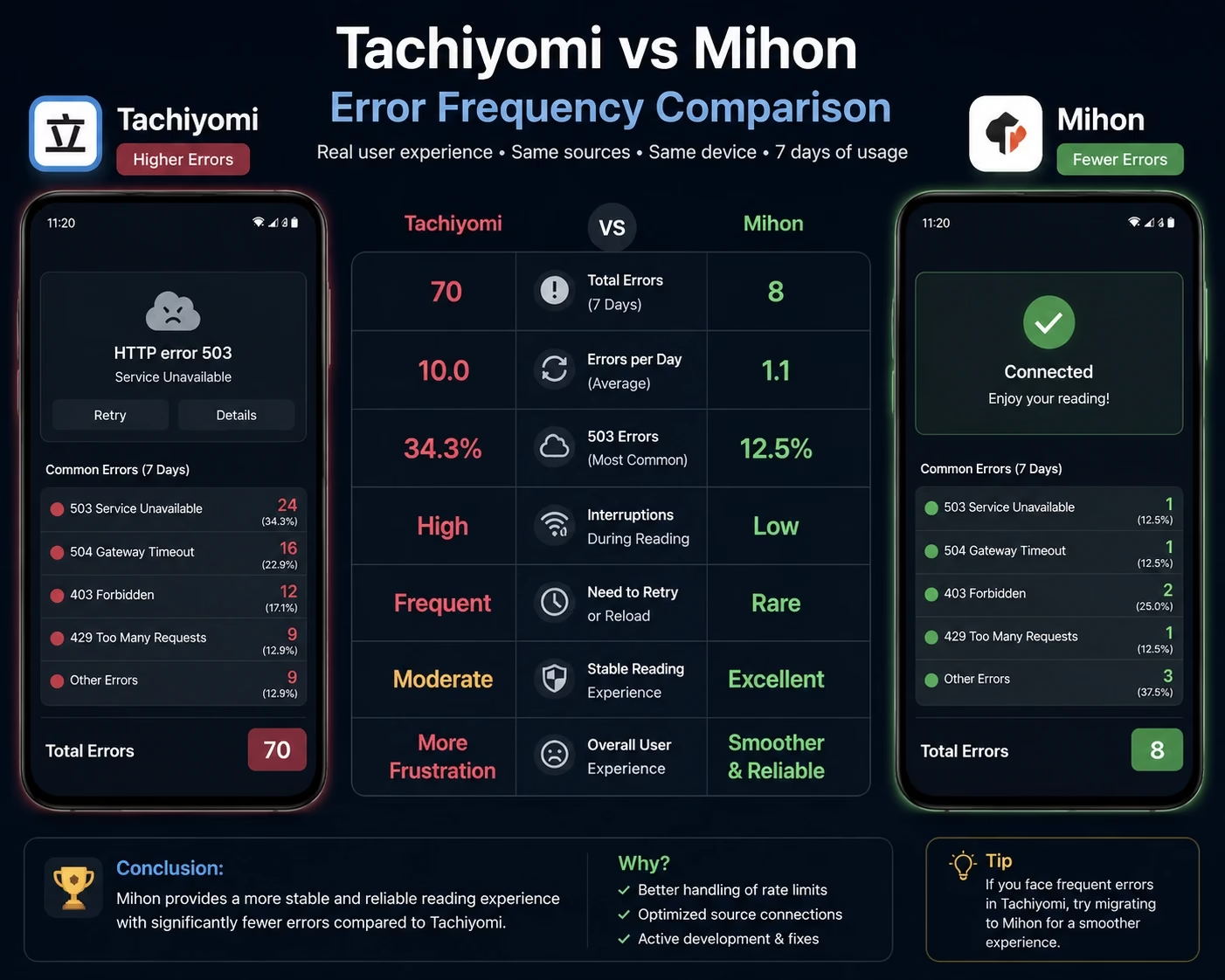
Permanent Fix: Switch to Mihon (The Real Solution in 2026)
Every fix above is a workaround. The underlying problem, that Tachiyomi is abandoned software, does not go away. Extensions will continue breaking at irregular intervals, and each new Android update raises the risk of full incompatibility.
Mihon is the direct successor built by contributors from the original Tachiyomi team. It uses the same extension system, the same .tachibk backup format, and the same reading interface, with one critical difference: it is actively maintained in 2026.
| Feature | Old Tachiyomi | Mihon (2026) |
|---|---|---|
| Security updates | None since 2024 | Regular |
| Extension fixes | No | Active |
| Android 14/15 support | Partial | Full |
| Library backup format | .tachibk | .tachibk (same) |
| Migration time | N/A | Under 5 minutes |
| Error 404 frequency | High & growing | Low, actively fixed |
How to Migrate from Tachiyomi to Mihon in 5 Minutes
- Create a backup in Tachiyomi: Go to More → Settings → Backup → Create Backup. Save the
.tachibkfile to Downloads. - Download Mihon APK: Get it from the official GitHub releases page. Never download from third-party sites.
- Install Mihon: Android may ask to allow installs from unknown sources. Enable it for your file manager only.
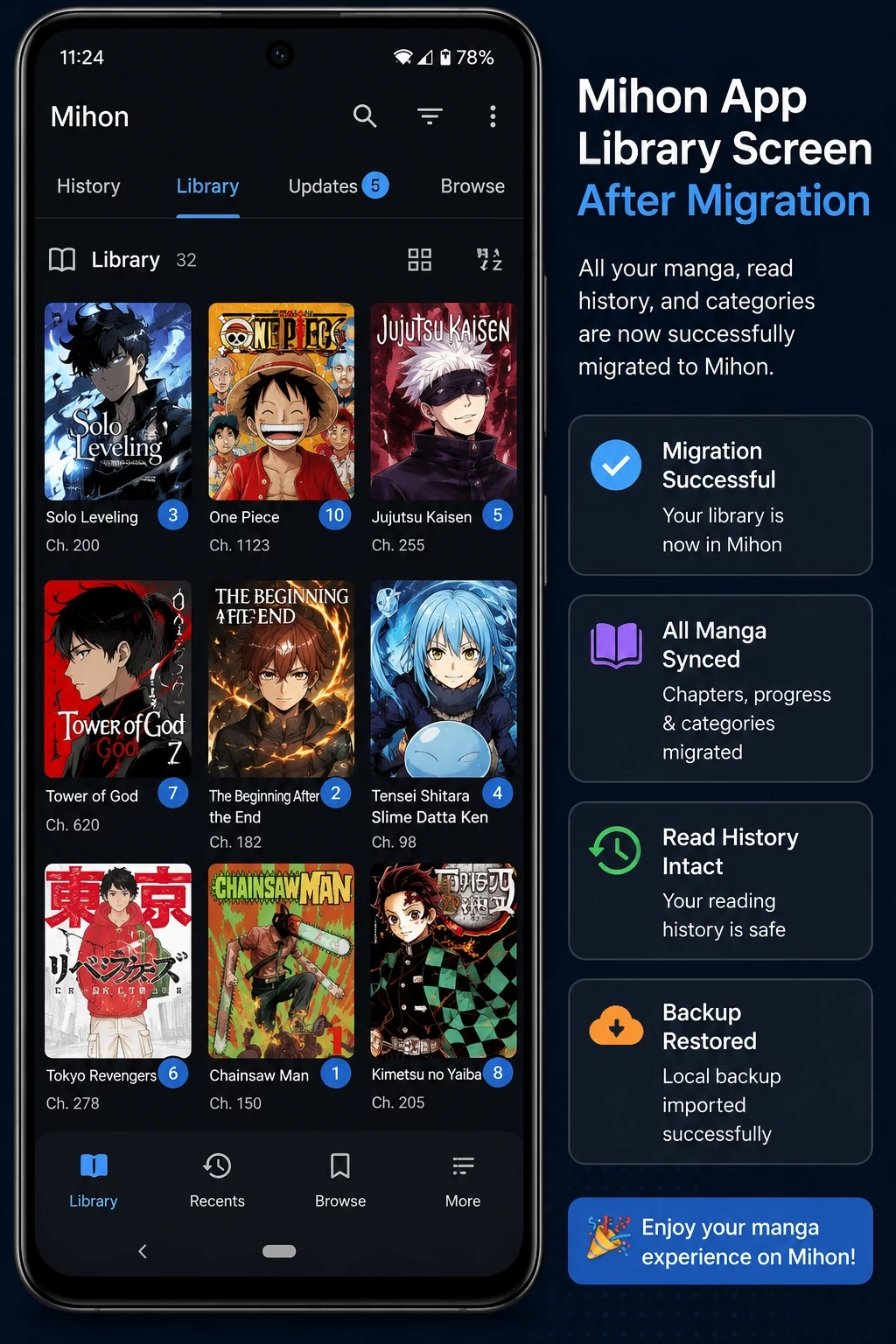
- Restore your library: Open Mihon, go to Settings → Backup → Restore Backup, select your .tachibk file. Everything transfers: reading progress, categories, tracker connections.
- Add the Keiyoushi repo: Go to Settings → Browse → Extension Repos, then reinstall your sources. Done.
Frequently Asked Questions
When all sources return 404 at once, the problem is almost always your extension repository URL, not the individual sources. Add the working Keiyoushi repo URL in Settings → Browse → Extension Repos, then update all extensions. If the problem persists, migrating to Mihon is the most reliable permanent fix.
No. Error 404 means the requested page or resource was not found, usually a broken extension or outdated URL. Error 502 is a bad gateway error, usually caused by Cloudflare blocking the request or a server overload on the manga source side. Both are common in Tachiyomi 2026, but they have different fixes. For 502, changing your User-Agent string is usually the fastest solution.
Yes, temporarily. Updating the extension, refreshing the repo URL, and changing your User-Agent string all work as short-term fixes. However, because Tachiyomi is no longer maintained, errors will return as manga sites continue updating. The only permanent fix is switching to an active fork like Mihon or TachiyomiSY, which receive regular extension compatibility updates.
Yes, in many cases. Tachiyomi HTTP Error 502 is often caused by Cloudflare detecting the app’s default user-agent as a bot and blocking it. Replacing it with a current Chrome user-agent tricks Cloudflare into treating requests as normal browser traffic. Go to Settings → Advanced → Default User Agent String and paste your browser’s user-agent. This also works for Mihon HTTP Error 500 when the issue is Cloudflare-related.
The Keiyoushi extension repo is a community-maintained repository that replaced the original Tachiyomi extension system after the project was discontinued. It is open-source, hosted on GitHub, and actively reviewed by the community. The repo URL is: https://raw.githubusercontent.com/keiyoushi/extensions/repo/index.min.json. This is the same repo used by Mihon and all actively maintained Tachiyomi forks in 2026.
No. Mihon uses the same .tachibk backup format as the original Tachiyomi. Create a backup in Tachiyomi (More → Settings → Backup → Create Backup), then restore it in Mihon (Settings → Backup → Restore Backup). Your reading progress, categories, and tracker connections all transfer in under five minutes with zero manual work.
Summary: How to Fix Tachiyomi Error 404
Most Tachiyomi Error 404 cases in 2026 come from one of three causes: an outdated extension, a broken repository URL, or Tachiyomi’s discontinued status meaning sites have moved on without it.
For a quick fix: update your extension, then replace your repo URL with the Keiyoushi link. For a permanent fix: migrate to Mihon in five minutes and stop dealing with recurring errors entirely. Your full library transfers with one backup restore.
If you are also seeing HTTP Error 500 or HTTP Error 502, the same User-Agent fix and repo update apply. The error number changes, but the underlying cause, unmaintained extensions hitting updated websites, is the same.